
How to Record Teams Meeting: A Complete Guide for High-Performing Teams
Excerpt:
Recording Microsoft Teams meetings is no longer just a nice-to-have—it’s a strategic necessity for high-performing teams. Whether you’re aligning on quarterly goals, onboarding new hires, or making critical decisions, capturing your meetings ensures nothing gets lost in translation. In this comprehensive guide, we’ll walk you through how to record Teams meetings effectively, why it matters, and how Meeting For Goals can help your team boost productivity, accountability, and morale through better meeting practices.
Introduction
In today’s fast-paced, hybrid work environment, meetings are the heartbeat of collaboration. But let’s face it—not everyone can attend every meeting. That’s where recording comes in. It ensures every idea, decision, and action item is captured and available for review.
At Meeting For Goals, we believe meetings should drive outcomes, not just fill calendars. Our platform helps high-performing teams align meetings with strategic goals, improve collaboration, and save time. Recording your Teams meetings is a big part of that process. It creates a reliable source of truth and builds team accountability.
If you’re a Director, VP, or C-suite leader looking to optimize team performance, this guide is for you. We’ll cover the benefits of recording, how to do it right, and how to make your recordings matter.
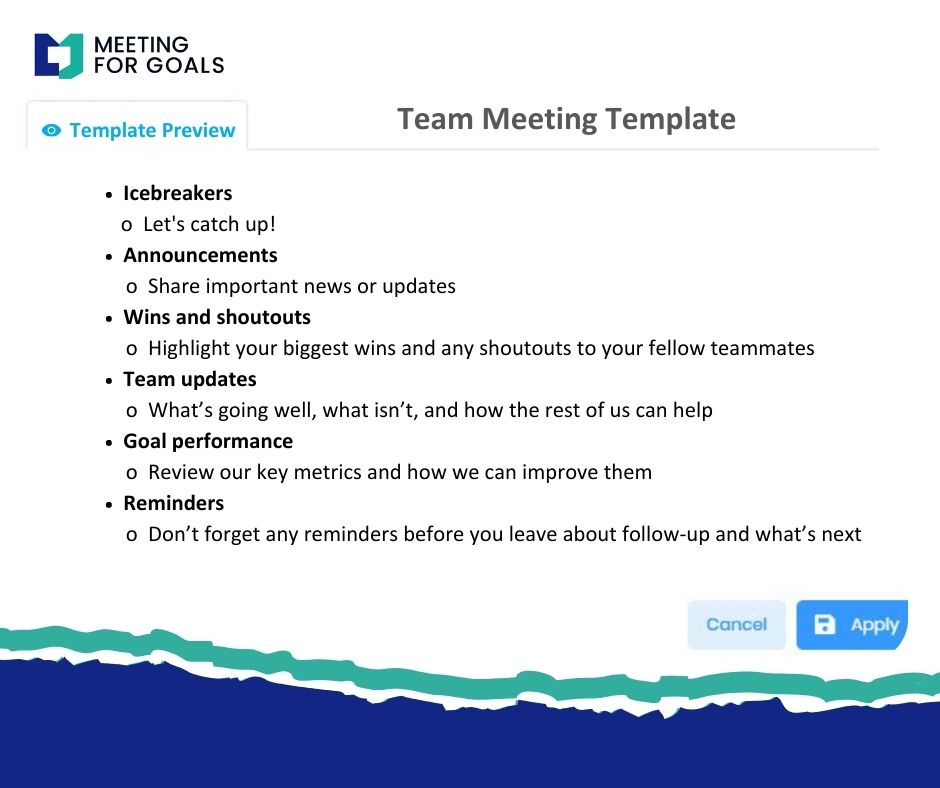
Want to streamline your meetings right away? Explore our free meeting templates to get started quickly.
2 Minute Video
Watch a 2 minute demo of our meeting management software in action
Section 1: Why Recording Teams Meetings Matters
Recording Microsoft Teams meetings goes beyond convenience—it’s a game-changer for collaboration, clarity, and compliance. Let’s break it down.
1.1 Boost Team Collaboration
Not everyone can attend every meeting. People are in different time zones, juggling priorities, or simply unavailable. When meetings are recorded, team members can catch up on their own time. This keeps everyone aligned and reduces the need to repeat discussions.
It’s especially helpful for cross-functional teams working on complex projects. Everyone can stay in the loop without extra meetings.
1.2 Build Accountability
When a meeting is recorded, there’s a clear record of what was said, what decisions were made, and who’s responsible for what. This transparency helps avoid misunderstandings and keeps everyone on track.
It also encourages more thoughtful participation. When people know their contributions are being recorded, they tend to stay more focused and engaged.
1.3 Improve Accessibility
Some people absorb information better through audio and video than written notes. Meeting recordings offer a more inclusive way to review discussions, especially for those with auditory learning styles or accessibility needs.
Plus, it’s easier to grasp tone and context from a video than from written minutes alone.
1.4 Speed Up Onboarding
New hires often struggle to get up to speed. Giving them access to past meeting recordings helps them understand team dynamics, project history, and decision-making processes. This makes onboarding smoother and faster.
It’s like giving them a front-row seat to the company’s inner workings—without needing to schedule hours of catch-up meetings.
1.5 Meet Legal and Compliance Standards
In many industries, having a record of meetings is more than helpful—it’s required. Whether for audits, legal documentation, or compliance checks, recorded meetings provide a verifiable history of communication and decisions.
For example, in healthcare or finance, regulations like HIPAA or FINRA make documentation crucial. Recording meetings helps meet those standards.
When paired with a platform like Meeting For Goals, recordings become even more powerful. You can tie them directly to goals, action items, and outcomes. Ready to build a more accountable team? Sign up now and start aligning your meetings with business goals.
Adding an Agenda
How to add an agenda instantly on Meeting For Goals
Section 2: How to Prepare for Recording a Teams Meeting
Recording a meeting isn’t just about pressing a button. Proper preparation ensures a smooth experience, legal compliance, and valuable content.
2.1 Inform Participants and Get Consent
Before you hit record, let everyone know. Microsoft Teams automatically notifies participants, but it’s best to give a heads-up in advance. Mention it in the calendar invite or agenda.
In some regions, recording without consent is illegal. Always make sure you’re following local laws and company policies.
2.2 Check Your Tech
A successful recording starts with a solid setup:
- Use the latest version of Microsoft Teams.
- Ensure a stable internet connection.
- Test your mic and webcam.
- Close unused apps to avoid lag.
If you’re using Meeting For Goals alongside Teams, make sure the integration is active. This lets you sync agendas, capture notes, and link recordings automatically.
2.3 Create a Clear Agenda
A focused meeting makes for a more useful recording. Stick to a clear agenda so viewers can easily follow along. It also helps you stay on topic and finish on time.
With Meeting For Goals, you can create and track agendas that align with your company’s objectives. This ensures your meetings—and recordings—are always purposeful.
2.4 Assign Meeting Roles
Even with a recording, you still need structure. Assign a facilitator to guide the discussion, a timekeeper to stay on track, and someone to take notes.
These roles help ensure important points don’t get lost and that the recording complements your meeting documentation.
Section 3: How to Record a Microsoft Teams Meeting
Once you’re prepared, recording your meeting in Microsoft Teams is simple. Here’s how to do it step by step.
3.1 Start the Recording
- Join the meeting as the organizer or a presenter.
- Click the three dots (More Actions) in the meeting controls.
- Select “Start recording.”
Everyone in the meeting will be notified that recording has started. This ensures transparency and compliance.
3.2 Know the Recording Rules
- Only one recording can be active at a time.
- The person recording must be from the same organization.
- Recordings are stored in OneDrive (for private meetings) or SharePoint (for channel meetings).
- Admins can restrict who’s allowed to record, so check with your IT team if you don’t see the option.
3.3 Stop and Save the Recording
- To stop recording, click “More Actions” again and select “Stop recording.”
- The video will process and automatically save.
- A link to the recording will appear in the chat, and all participants will be notified.
3.4 Alternatives If You Can’t Record
If the built-in recording feature isn’t available, consider these options:
- Use third-party tools like Loom or OBS Studio.
- Use Meeting For Goals to capture structured meeting notes and outcomes, even without video.
Keep in mind, third-party tools may not offer the same security or integration as Microsoft Teams.
Want to take your meetings even further? Check out our free meeting templates to start with a structure that works.
Section 4: Best Practices for Recording Meetings
Recording is easy. Making the recording useful takes a bit more effort. Follow these best practices to get the most value.
4.1 Use Quality Equipment
Good audio and video make a huge difference:
- Use a quality microphone and webcam.
- Choose a quiet, well-lit space.
- Mute yourself when not speaking.
- Encourage headphones to reduce echo.
Poor sound quality can make recordings frustrating to watch—and less likely to be used.
4.2 Keep the Meeting Engaging
A boring meeting is still boring on video. Keep energy levels up with:
- Polls or quick Q&A sessions.
- Visual aids like slides or screen sharing.
- Calling on participants by name.
Engaged participants make for more dynamic, useful recordings.
4.3 Speak Clearly and Stay on Track
Talk at a steady pace and avoid jargon. Stick to the agenda so viewers can easily follow the flow.
Meeting For Goals helps by keeping your agenda visible and linked to your objectives. This makes your recordings more focused and actionable.
4.4 Add Time Stamps and Highlights
After the meeting, consider adding time stamps to key sections. This helps viewers jump straight to the content they need.
You can also link the recording to specific goals or action items in Meeting For Goals. This creates a direct connection between your meeting and your team’s progress.
Section 5: Accessing and Sharing Your Recordings
Once your meeting is recorded, make sure it’s easy to find and share.
5.1 Where to Find the Recording
- After the meeting ends, the recording appears in the meeting chat.
- It’s also saved in OneDrive or SharePoint depending on the meeting type.
- Click the link to view, download, or share.
5.2 How to Share the Recording
Share your recording in a way that fits your team’s workflow:
- Send the link via email or chat.
- Embed it in a follow-up note or agenda in Meeting For Goals.
- Post it in your team’s shared drive or project folder.
Make sure permissions are set so only the right people can access it.
5.3 Organize for Long-Term Use
To make recordings part of your team’s knowledge base:
- Label and organize them by project or department.
- Store them in a central location.
- Use Microsoft Stream for features like transcription and keyword search.
With Meeting For Goals, you can attach recordings directly to recurring meetings, goals, or projects. That way, your team always knows where to find important discussions.
Want to build a smarter meeting culture? Sign up now to connect your recordings with real outcomes.
Conclusion
Recording Teams meetings isn’t just a helpful feature—it’s a strategic move for high-performing teams. It improves collaboration, builds accountability, and supports smarter decision-making.
When paired with a platform like Meeting For Goals, your recordings become more than just files—they become tools for action. Align every meeting with your company’s goals, track every decision, and make every discussion count.
Ready to level up your meetings? Sign up for Meeting For Goals and start turning your recordings into results.
Want to see how structure transforms meetings? Explore our free meeting templates and get started today.
Have tips or questions about recording meetings? Share your thoughts in the comments or connect with us at meetingforgoals.com. Let’s build better meetings—together.
External Resources:
- Learn more about Microsoft Teams recording policies from Microsoft’s official documentation.
- Discover how asynchronous collaboration is shaping modern work in this Harvard Business Review article.
Internal Links:
- Sign up now at https://app.meetingforgoals.com/TenantRegistration/Register
- Explore free meeting templates: https://meetingforgoals.com/meeting_templates
- Visit us at https://meetingforgoals.com